S3 pre-signed URLs can be used to provide temporary third-party access to private objects in S3 buckets. For example, non-public files on a file sharing site can be made available to approved users with one-off URLs that expire after 10 minutes. Here we offer a simple demo for testing the concept.
The demo consists of these parts:
- An S3 bucket with a private access policy, i.e. non-public.
- An EC2 instance with an IAM role attached.
- An IAM policy that gives the EC2 instance access to the S3 bucket through its role.
- Some files, images, etc. uploaded to the S3 bucket.
- A simple PHP script running on the EC2 instance that lists the objects in the bucket and generates signed URLs.
Preparation
Spin up an Amazon Linux EC2 instance.
- Assign a public IP or Elastic IP address, e.g.
IP.AD.DR.ES. - Assign an EC2 IAM role, e.g. s3sign-role.
- Assign a public IP or Elastic IP address, e.g.
Create an S3 bucket, e.g. s3sign-bucket.
Give the instance permission to read the objects in the bucket. A minimal IAM policy for s3sign-role should look like this:
{
  "Version": "2012-10-17",
  "Statement": [
    {
      "Action": ["s3:Get*"],
      "Resource": ["arn:aws:s3:::s3sign-bucket/*"],
      "Effect": "Allow"
    }
  ]
}
The demo also lists the bucket contents, so its role needs
s3:ListBucketon the bucket itself. Add permissions for other operations only if your application needs them.Remember to update the bucket name in the
Resourceblock if it is different from s3sign-bucket.
Installation
Refer to the README in the GitHub repository for details.
CloudFormation way
Instead of following the manual steps above, use the provided s3-sign-demo.json CloudFormation template. It sets up the same environment. The Outputs tab in the CloudFormation console shows the IP address of the instance.
Testing
Upload some files and images to s3sign-bucket with a private ACL and browse to http://IP.AD.DR.ES/index.php, where IP.AD.DR.ES is the IP address of your EC2 instance. You should see a page like this:
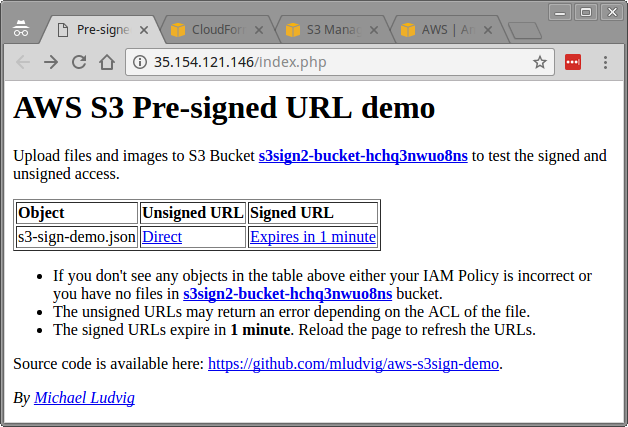
Sure, it is not the epitome of contemporary web design, but it works 🙂
The page shows a table with two URLs for each object:
Unsigned URL — a plain HTTPS URL such as:
https://s3-ap-southeast-2.amazonaws.com/s3sign2-bucket-hchq3nwuo8ns/s3-sign-demo.jsonMost likely you will get an Access Denied error when clicking that URL: the file is intentionally not publicly accessible.
Signed URL — the same object URL followed by parameters like these (shortened for readability):
?X-Amz-Security-Token=FQ…
&X-Amz-Credential=ASIAJF3BXG…
&X-Amz-Date=20170125T044127Z
&X-Amz-Expires=60
&X-Amz-Signature=24db05…
These parameters are part of one continuous URL, without line breaks.
Some parameters denote the signature validity (X-Amz-Date, X-Amz-Expires); others provide the credentials and cryptographic signature (X-Amz-Security-Token, X-Amz-Credential, X-Amz-Signature, etc.). There are library functions to create the complete URL.
The code
For completeness, here is the code that generates the signed URL. Check out the full PHP script in the GitHub project.
require "aws.phar";

$s3 = new Aws\S3\S3Client([
    'version' => '2006-03-01',
    'region' => $region,
]);

$cmd = $s3->getCommand('GetObject', [
    'Bucket' => $bucket,
    'Key' => $object,
]);

$request = $s3->createPresignedRequest($cmd, "+1 minute");
$signed_url = (string) $request->getUri();
That is all 🙂